How to Embed Audio Into a Canvas Page
Canvas LMS allows you to integrate audio in various ways, depending on what your objective is. In this short tutorial, I explain how you can embed mp3 files into Canvas using the <audio> tag.
How to Embed Audio Into a Canvas Page
Author M. Ricardo Flores
The <audio> tag allows you to upload audio files into the “FILES” folder in Canvas, and then make that audio playable in a Canvas page.
There are two general steps you need to perform to do this:
- Upload your audio file (mp3) to the FILES Folder in your Canvas course (I recommend you make a subfolder named “AUDIO” so that if you have multiple audio files they will all live in the same folder.
- Edit the code below as per my instructions and then paste it into your Canvas course and save.
IMPORTANT: The best file type for the web is .mp3. Other file types will be troublesome if not impossible to use. So, make sure your audio file is in .mp3 format.
You can copy the code snippet below and paste it into a text editor such as MSWord. Once you have pasted the code there, replace the BOLD text with your own.
Copy this code and edit the BOLD text only
<div class="user_audio">
</p>
<p>Press the play button to listen to Ray Charles</p>
</p>
<audio src="/courses/18876/files/1130201/download" controls="controls"> Your browser does not support the audio file.</audio>
</p>
</p>
</div>
When you place any kind of file in your “FILES” folder in Canvas, it is assigned a file ID (a number). There are a couple of ways to find out that number. The easiest is to right-click the file and choose “copy URL”
You will only need to replace the course ID (18876) and the file ID (1130201) with your own course ID (this is the specific course where your audio file is. You cannot put the file in one course and try to play it in another), and your own file ID. After you update those you can copy and paste the code into your Canvas page using the HTML view of the Rich Text Editor.
To reiterate; in this example:
My course ID is #18876 (this is not the same as CRN, you can get this by looking at the URL)
My File ID # 1130201 (this the ID of this particular audio file in my Canvas course)
You will need to have uploaded your audio file to your FILES folder in the course that want this, and replace the course ID and File ID with your own. Make sure to save your work.
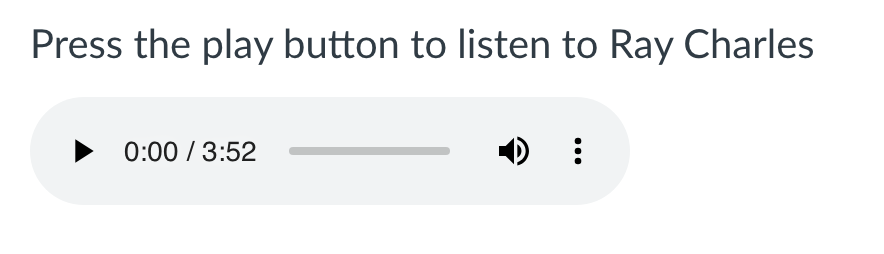
After you successfully paste and save the code, you will see something like this in your page:
Have questions or need assistance? Contact the Instructional Technologist.